
Sessions & Viewing Days
Enable Has Sessions? on a lot to split the catalog into scheduled groups.
Session fields
Section titled “Session fields”| Field | Meaning |
|---|---|
| Session Number | Identifies the session in the sale. |
| Start Date & Time | Schedules the session start. |
| End Date & Time (Parallel Mode) | Sets the parallel session’s closing time. |
| Start Item # | First item position included in the session. |
| End Item # | Last item position included in the session. |
- Arrange the lot’s products in their intended sale order.
- Add session rows and choose valid item ranges.
- Use future start times when scheduling a new sale.
- In parallel mode, set an end after the start for each session.
- Save and check the calculated lot dates and customer-facing session list.
For example, items 1–15 can belong to the morning session and 16–30 to the afternoon session. Recheck ranges whenever products are inserted, removed, or reordered.
Sequential sessions use the sequential timing controls for individual auctions. Do not treat the parallel end-date field as their timing mechanism.
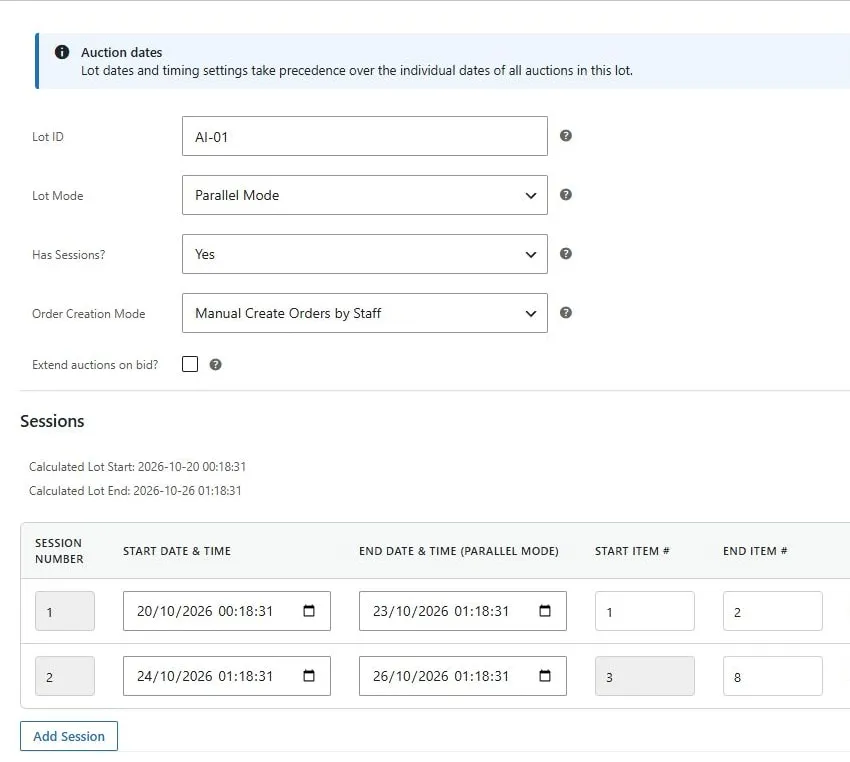
Parallel lot with sessions enabled, order creation mode, and example session start and end dates.
Viewing days
Section titled “Viewing days”Add a date, Time From, and Time To in Viewing Days to advertise inspection opportunities. These are viewing details; bidding availability is governed by the lot and session auction schedule.
Demo example
Section titled “Demo example”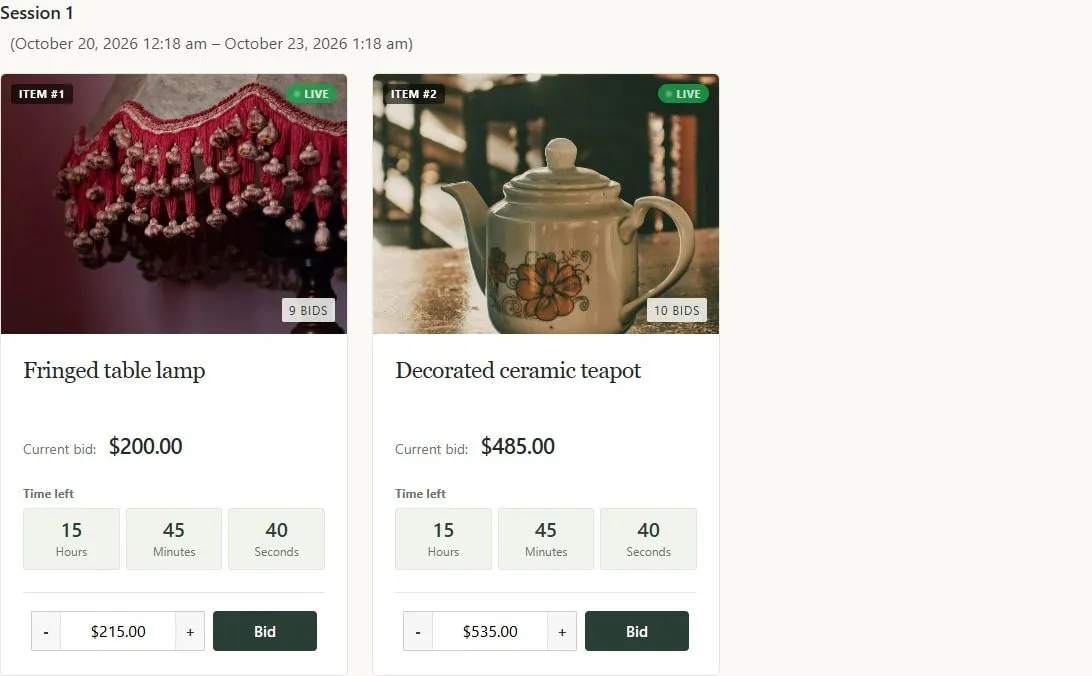
Live session containing two auction items with independent bidding controls.