Your First Auction
Create an item
Section titled “Create an item”- Open Auctions → Add New Auction.
- Enter a title, description, and product image.
- Confirm that the product type is Auction.
- Open the Auction tab in Product data.
- Choose Normal as the auction type and leave proxy bidding disabled for this first test.
- Enter Start Price
100and Bid increment5. - Leave the reserve and Buy It Now price empty for this test.
- Set Auction Starts and Auction Ends, with the end after the start. Leave Auction Lot empty.
- Check stock, shipping, and tax settings for the item, then publish it.
Test as a customer
Section titled “Test as a customer”Use a separate customer account. Open the auction after its start time and submit the amount shown as the minimum acceptable bid. With a fixed increment of 5, subsequent normal bids must meet the next displayed minimum.
Confirm the accepted-bid message, current price, history, and customer notification. Use a second customer account if you want to test outbid behavior.
Test completion
Section titled “Test completion”On a test item, allow the auction to end and run the closing cron. Confirm the winner under Auctions winners, open the winner’s payment link, and complete checkout with a test payment method.
Check the order and payment state separately. See Winners & Payments for the full workflow.
Screen example
Section titled “Screen example”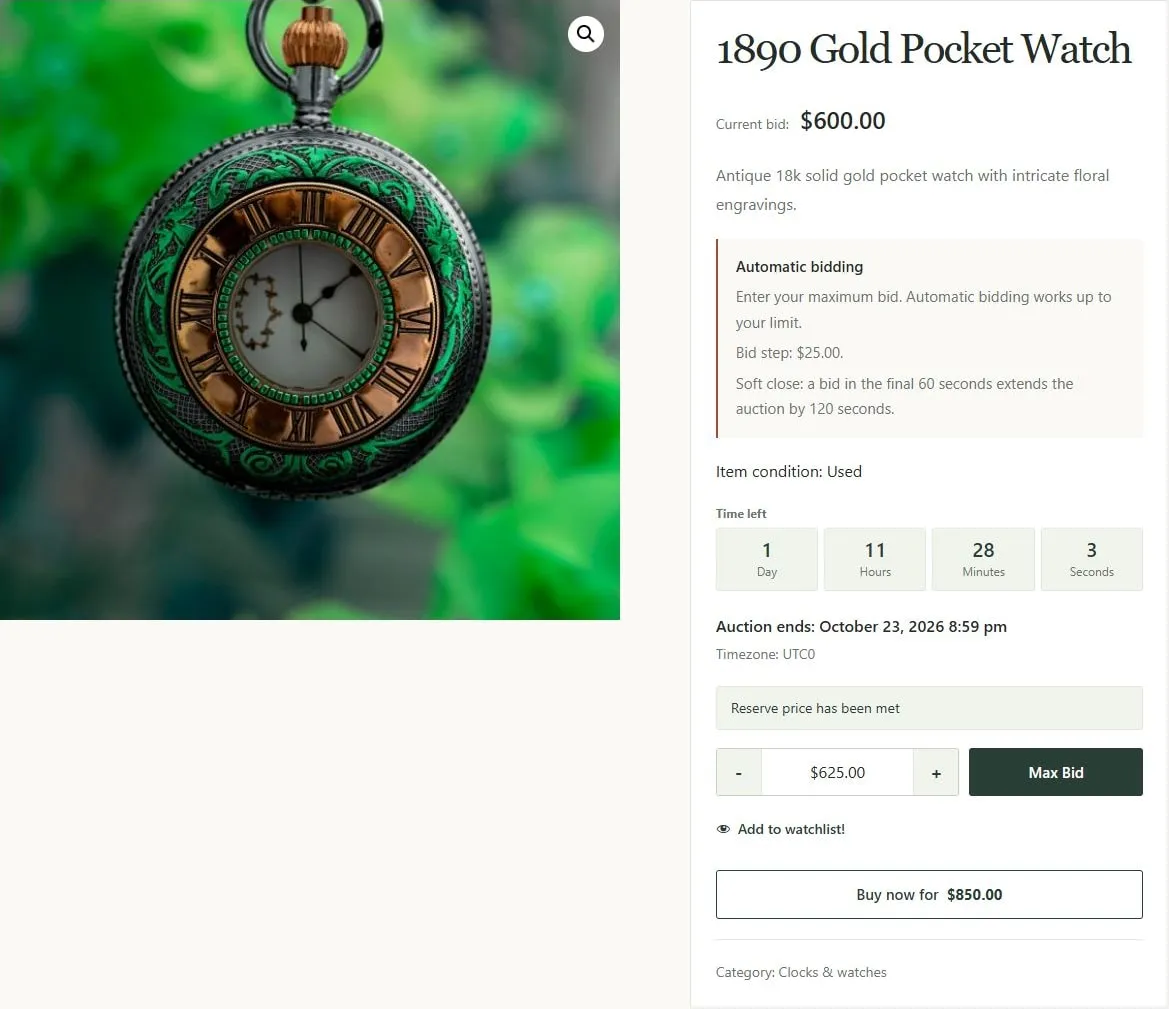
Example live auction with countdown, reserve status, and bid form. Captured from the local demo; the theme and example values may differ from your store.