
Creating Auctions
Create an Auction product from Auctions → Add New Auction. Add the same product information you would use for another WooCommerce item: title, description, images, categories, shipping, tax, and stock.
Auction fields
Section titled “Auction fields”| Field | Purpose |
|---|---|
| Item condition | Describes the condition of the item. |
| Auction type | Selects normal or reverse bidding. |
| Proxy bidding? | Lets the bidding engine bid against a customer’s submitted limit. |
| Sealed Bid? | Enables private bids when sealed auctions are enabled globally. |
| Start Price | Sets the opening price boundary. |
| Bid increment | Sets the minimum step between ordinary bids. |
| Bid increment in percentage? | Interprets the increment as a percentage of the current bid. |
| Reserve price | Sets the price threshold required for a successful sale. |
| Buy it now price | Offers an immediate purchase option when available. |
| Auction Lot | Assigns the item to an auction lot. |
| Auction Starts / Auction Ends | Sets the schedule of an independent auction. |
Independent or lot-managed
Section titled “Independent or lot-managed”Leave Auction Lot empty to manage the item’s own dates and extension settings. When an auction is assigned to a lot, the lot manages its schedule and extensions; the individual date fields are hidden.
Before publishing
Section titled “Before publishing”- Check the bid direction and whether proxy or sealed bidding is intended.
- Check stock availability. An out-of-stock auction rejects bids.
- Confirm the start and end in the WordPress timezone.
- Review the customer-facing product page while logged in as a customer.
See Pricing & Reserve and Scheduling & Extensions for examples.
Screen example
Section titled “Screen example”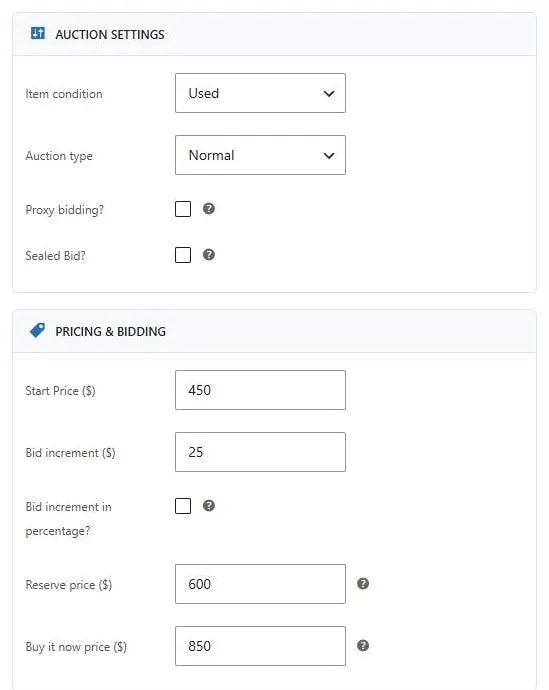
Auction product configuration and pricing fields. Captured from the local demo; the theme and example values may differ from your store.