
Managing & Relisting Auctions
Daily administration
Section titled “Daily administration”- All Auctions lists individual auction products.
- Auctions activity provides bid activity.
- Auctions winners lets staff review winning auctions.
- Analytics summarizes outcomes, bids, and paid revenue.
An auction can have bids without meeting its reserve. A winning result can remain unpaid. Review the outcome and order before taking further action.
Review the auction panel
Section titled “Review the auction panel”Open a saved auction product and find its Auction panel.
- Auction Status shows whether the auction is scheduled, active, finished, or failed, with the current bid and bidder where available.
- Finished auctions can show a failure reason, linked order/payment information, or Send another winning mail to user? when that control is available.
- Active proxy auctions show the stored maximum and its bidder to administrators. Keep these values private.
- Relisted auctions show the relist date. Retained earlier entries appear under Auction Data Prior Relist.
- Sent payment reminders have a count, last-sent date, and running/stopped indicator when available.
For a finished auction with an eligible unpaid winner, see staff-generated winner orders.
Search, print, and export bid history
Section titled “Search, print, and export bid history”In Auction History, use the search field and column controls to inspect bid dates, amounts, users, and the Auto marker for proxy entries. Additional columns include customer contact details.
Use Print, CSV, or Excel to export the table’s visible columns. Review the search, selected rows, and visible columns before exporting, then inspect the resulting file for the intended scope. Keep exports containing customer details or sealed bids restricted to authorized staff. A history export is not a full backup of auction products or orders.
Delete an incorrect bid
Section titled “Delete an incorrect bid”- Back up the affected sale data and inspect any linked order or payment.
- Find the incorrect entries in Auction History and select the intended rows.
- Use Delete and confirm the displayed deletion prompt.
- Reload the auction editor and check the current bid, bidder, reserve, and customer-facing result.
Deletion permanently removes the selected log entries. The handler recounts retained logs, selects a remaining entry for the current bid and bidder, and clears the stored proxy maximum and maximum bidder. If no eligible entry remains, it clears the current bid and bidder too. After relisting, replacement selection uses entries after the relist date.
The current handler selects the most recent remaining entry, with amount ordering as a secondary criterion; it does not reconstruct all competing proxy limits. Do not assume deleting the winning bid always promotes the next-highest offer, especially for proxy or sealed auctions.
Deleting a bid does not itself recreate or cancel an order, refund a payment, re-evaluate the closed result, or send an Auction Won email to a replacement bidder. Review those separately before arranging another payment. Use the winning-email resend control only when available and after confirming the intended winner.
Relist an individual auction
Section titled “Relist an individual auction”On an eligible finished auction, use the relisting panel to choose Relist Start Date, Relist End Date, and the Bid Logs option. Confirm Relist Auction Now.
Relisting starts another sale cycle. Decide whether to retain or remove bid logs before confirming: removing logs affects bid history and analytics based on retained logs.
Automatic relisting
Section titled “Automatic relisting”The product supports automatic relisting controls for failed or unpaid auctions, a new auction duration, and bid-log handling. Configure the intended conditions and run the relist cron endpoint hourly.
Before relisting an unpaid win, inspect the linked order and any pending payment. Do not use relisting as a substitute for checking payment status.
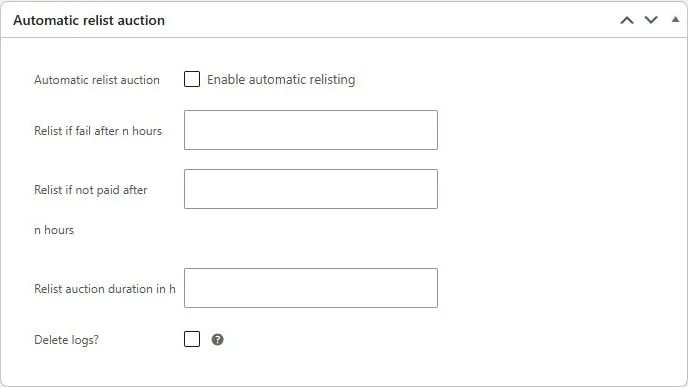
Automatic relisting switches, failed and unpaid delays in hours, new duration, and bid-log handling.
Use the parent lot’s relisting workflow for a grouped sale. Choose a valid new schedule and review session ranges and product order before restarting. See Lot Operations.